Documentation
Server Setup
Everything lives in the Remote Desktop section of the Web UI; the page shows the settings that apply to the server’s platform.
Main switch
Enable Remote Desktop — once on, connected remote clients may view this machine’s desktop and send input.
Platform settings
Windows
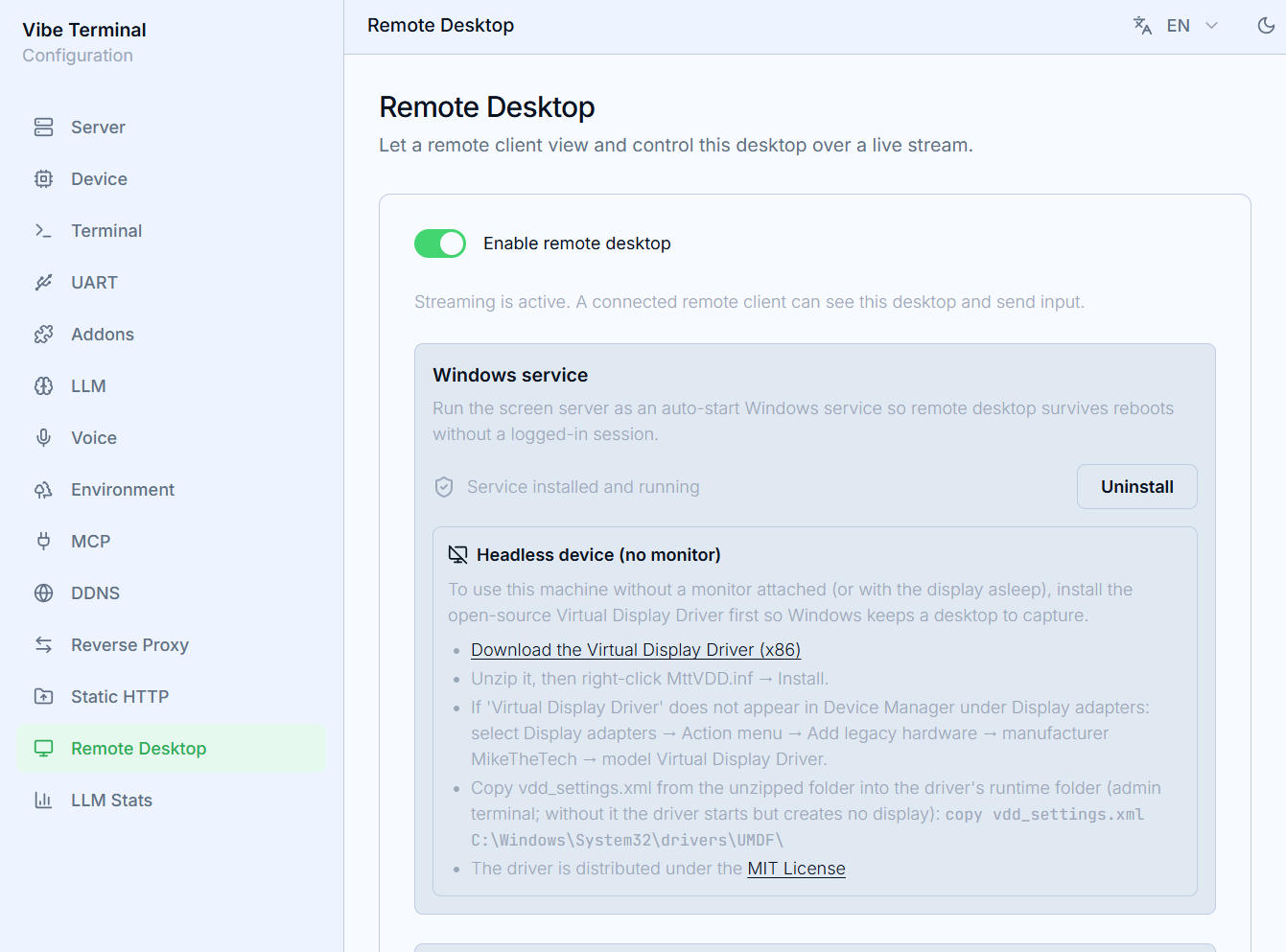
Windows Service— registers the screen server as an auto-start system service so remote desktop survives reboots without a logged-in session.Install/Uninstalltrigger a UAC prompt on the server (the button shows progress while waiting); the status badge distinguishes running / installed / not installed.Headless machines (no monitor)— without an attached (or awake) display Windows keeps no capturable desktop. The page links the open-source Virtual Display Driver download (ARM64 / x64 picked automatically); install it so a virtual desktop always exists.
Linux
Unlock on Connect— automatically unlocks the locked session when a stream starts (where the environment supports it);- Screen capture goes through the Portal; the
Screen Recording Permissioncard’sReset Permissionclears a saved Portal consent so you can pick a different screen. Auto-start on Login(in theServersection) — on hosts with a display manager the server starts together with the graphical session, so capture inherits the full desktop environment; on headless hosts it starts at boot before any login instead. To reach the desktop when nobody has logged in locally, also enable automatic login in the display manager (GDM, SDDM, …); for security the automatic screen lock can stay on — the session and server keep running while locked, andUnlock on Connect(orloginctl unlock-session) opens the session remotely.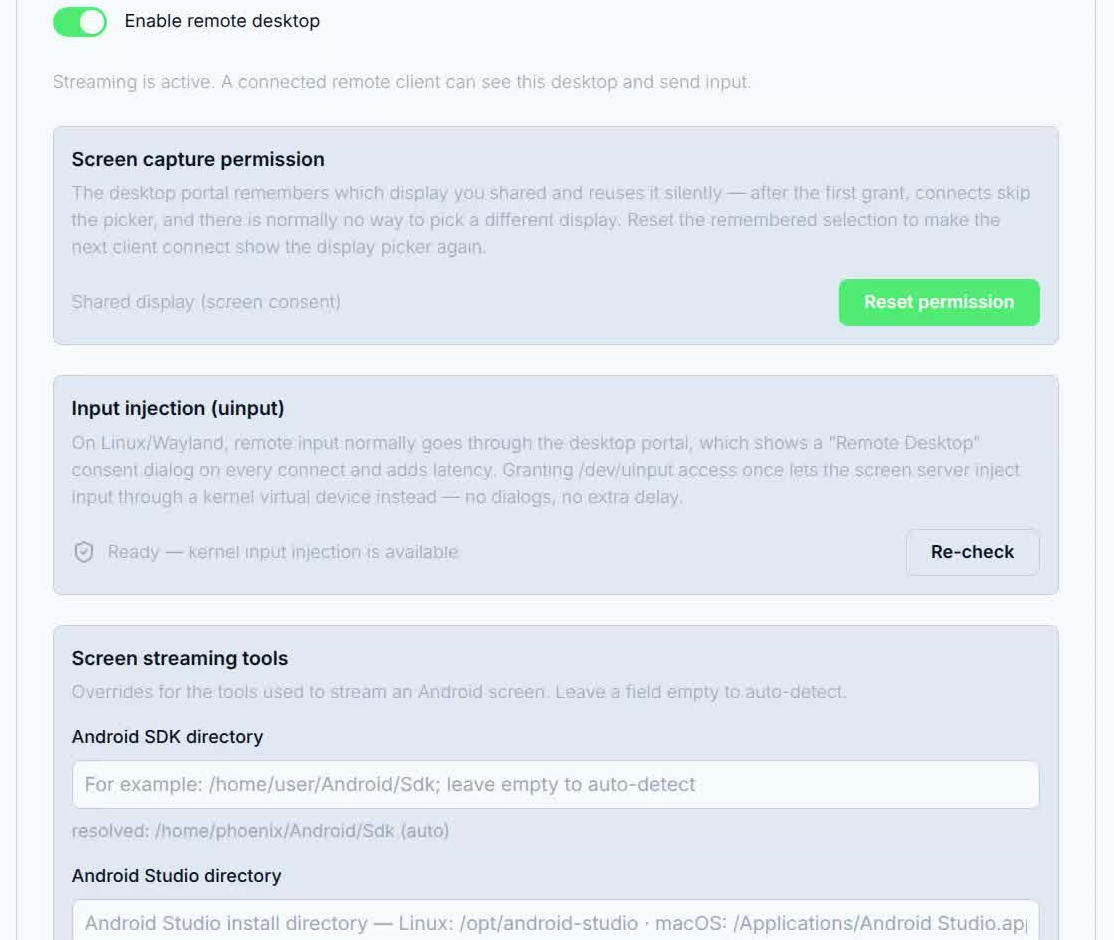
macOS
Screen Recording Permission— the system requires explicit approval for capture. ClickGrant Permissionto open the system dialog;Reset Permissionrecovers from a stuck state.
Screen streaming tools (Android support)
Android SDK directory and Android Studio directory locate adb and the emulator; leave empty for auto-detection. Once set, the page shows the resolved path and where it came from (auto / env / override); Reset to Auto-Detect restores the default. See Android Devices for what these enable.
Stream encoding
Encoder— Auto or a specific backend; the server lists usable encoders and greys out unavailable ones with the reason;Frame rate— 60 / 30 / 15 fps;Max resolution— capture-side ceiling (4K / 2.5K / 2K);Bitrate—Autoarea-scales with resolution (base rate up to 1080p, ~4× at 4K, capped at 40 Mbps); a fixed value applies to running streams immediately, while encoder / fps / resolution apply to streams started afterwards;- The card footer shows the encoder / fps / resolution / bitrate currently in effect.
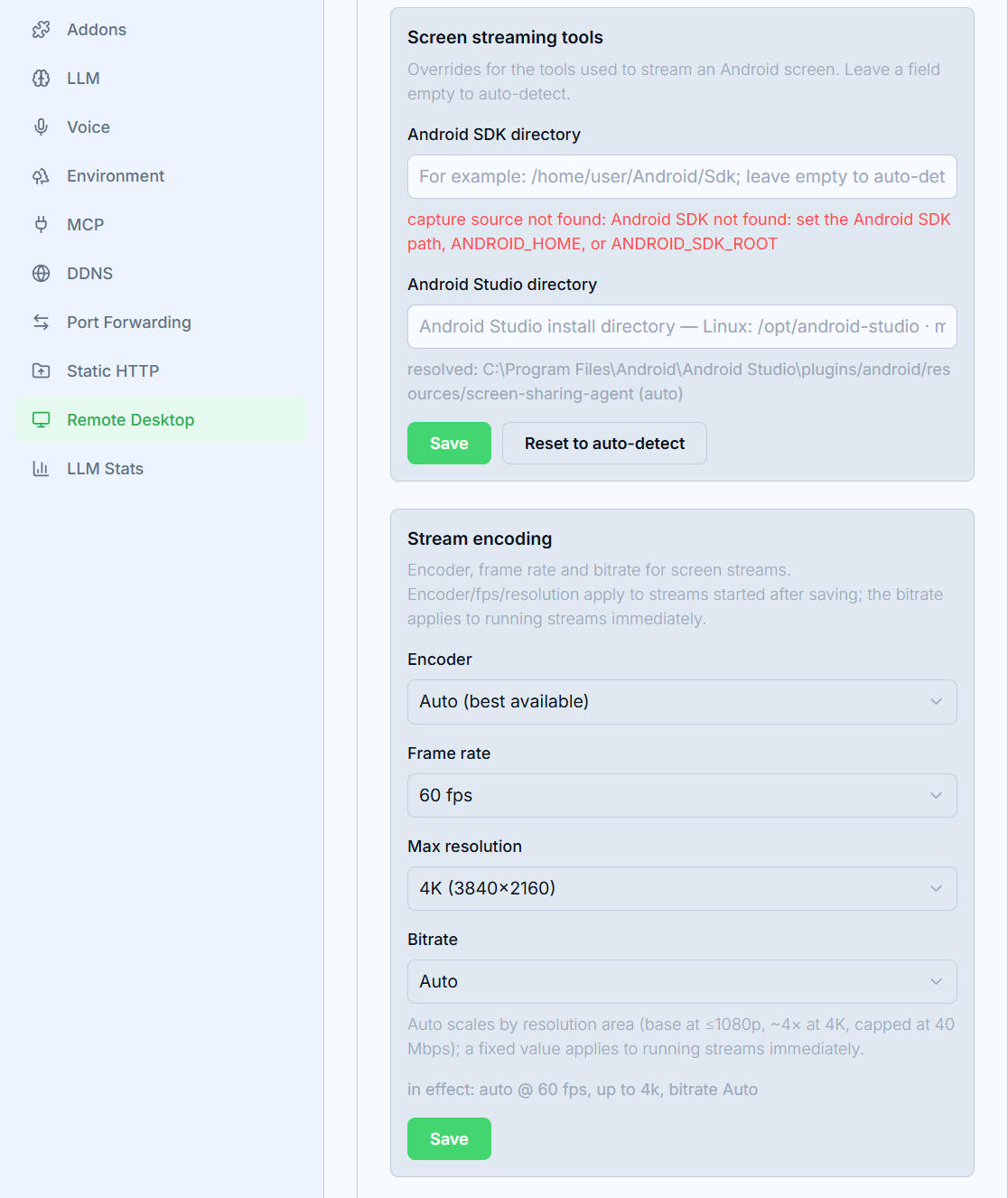
Click Save to apply changes.