Documentation
Server Setup
Voice input turns speech into terminal input: talk instead of typing, with optional LLM polish for the transcript before it is sent. Recognition runs as a local ASR server with on-device models — audio and text stay on your machine. This page covers the server side; the desktop experience lives in Using the Client.
The Local ASR Server card
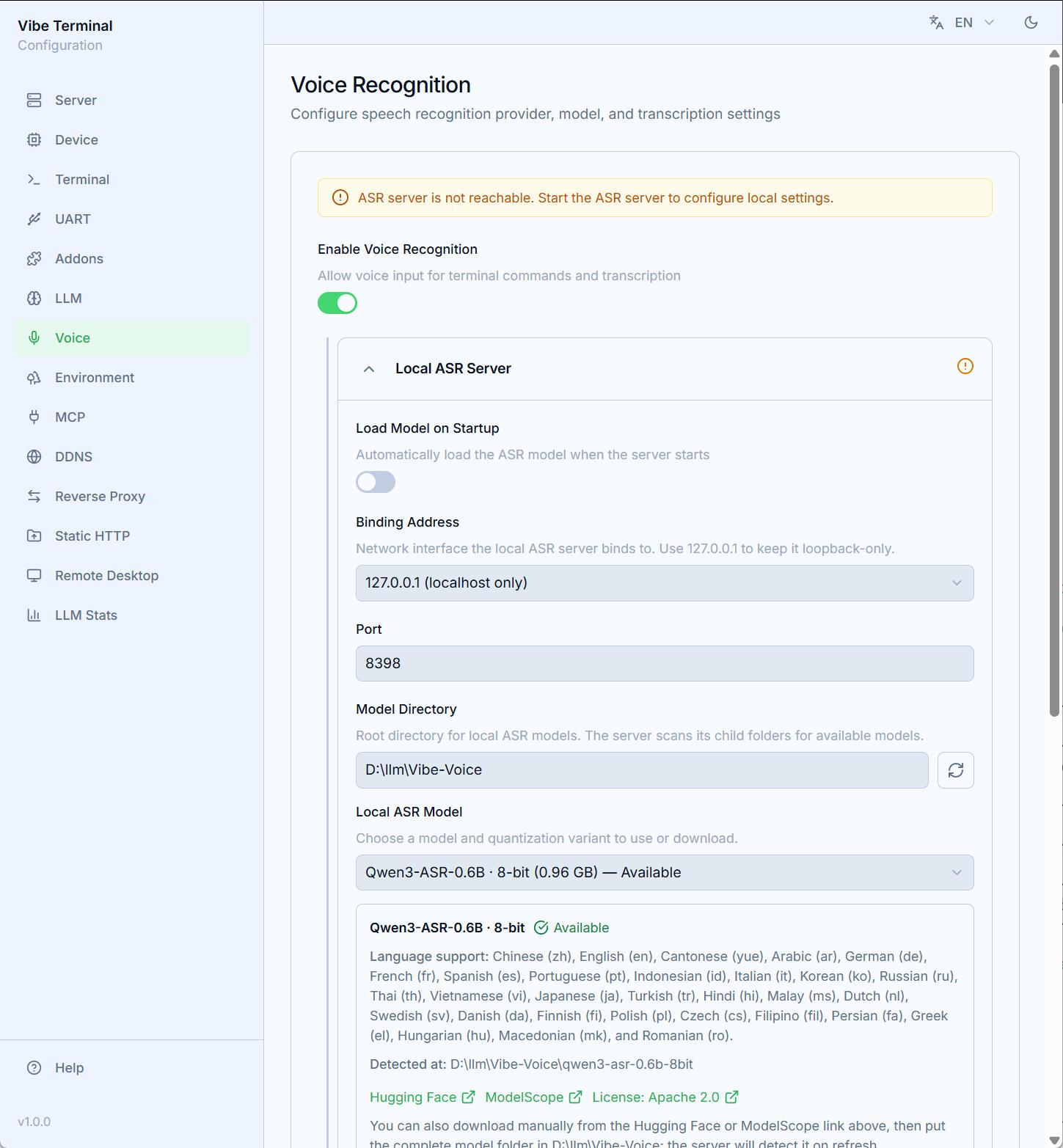
Open the Voice section of the Web UI and enable voice recognition. The Local ASR Server card manages the supervised vterm-voice process:
Load on Startup— start the ASR server together with the backend;Bind Address(127.0.0.1localhost-only /0.0.0.0all interfaces) andPort(default8398) — where the ASR endpoint listens;Model Directory+Local Model— pick from the built-in catalog: Qwen3-ASR, Fun-ASR and Parakeet families, each in full / 8-bit / 4-bit variants.Downloadfetches the model from Hugging Face or ModelScope into the directory with a live progress bar; manualgit clonecommands are shown as a fallback, and models already on disk are marked available;Device— the inference backend (Auto,CPU,CUDA,Vulkan,Metal), as reported by the server;Access Token— shared secret for the endpoint; the dice button generates one;Savepersists the card (edits stay a local draft until then), andStart Server/Stop Servercontrol the process. The status icon in the card title reflects reachability and model state (loaded / loading / error).
CUDA contention: when another CUDA inference program already occupies the GPU (e.g. llama.cpp running a local model), letting vterm-voice use
CUDAas well can slow both down drastically. In that case setDevicetoCPU— these compact ASR models are fast enough on CPU.
Provider and testing
The provider dropdown lists ASR addons — the built-in vibe-voice addon points at this supervised server, so selecting it is how the panel uses your local models.
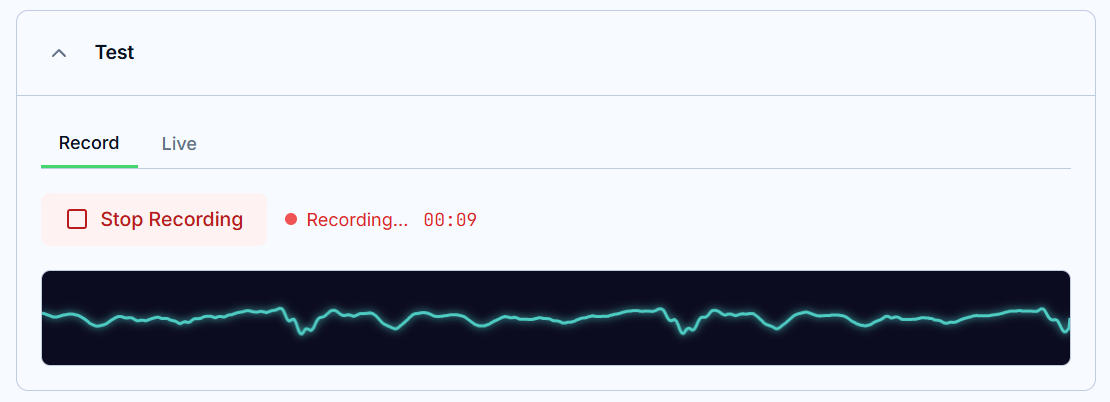
The Test area tries everything without a client: Record (microphone → waveform → transcription) and Live (streaming recognition), each with timings and a copy button.