Documentation
File Explorer
The file explorer operates the server-side file system. The toolbar at the top of the left panel switches between Recent / Explorer / Git / Debug / Search; Explorer is the file browser.
The Home button: jump to the terminal’s cwd
Click the Home (house) button in the toolbar:
- Switches to the
Explorerview; - Jumps to the working directory of the active terminal (its cwd);
- Pins that directory as a tree and clears the search box — you always start from “wherever the terminal is, that’s what you see”.
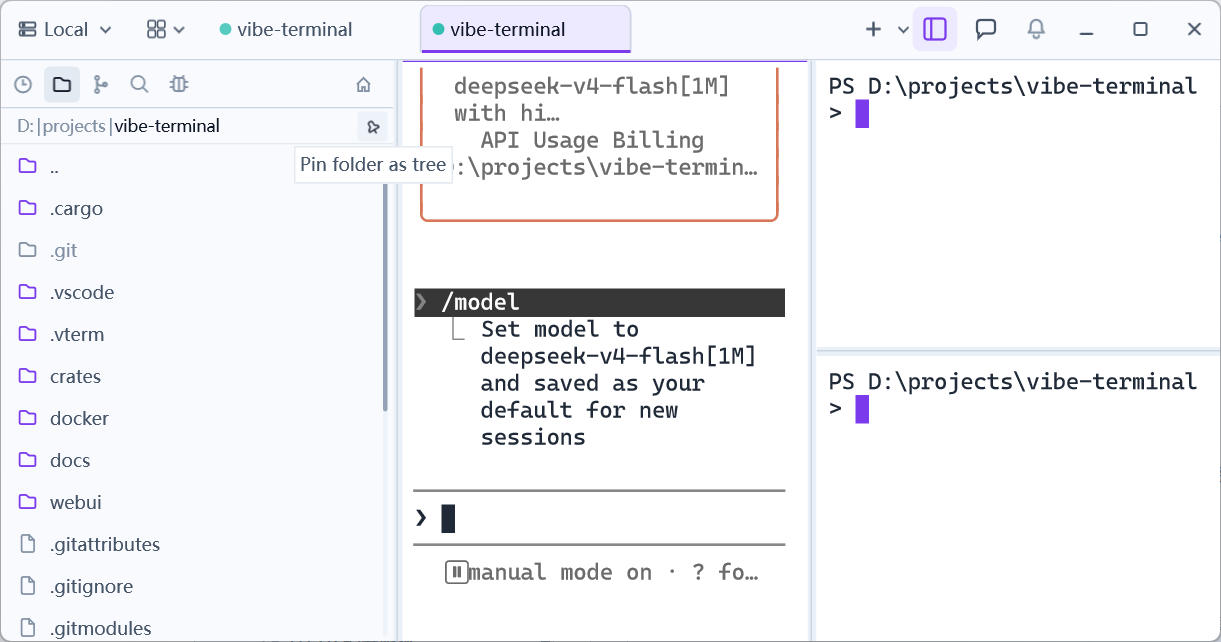
Tree mode and search
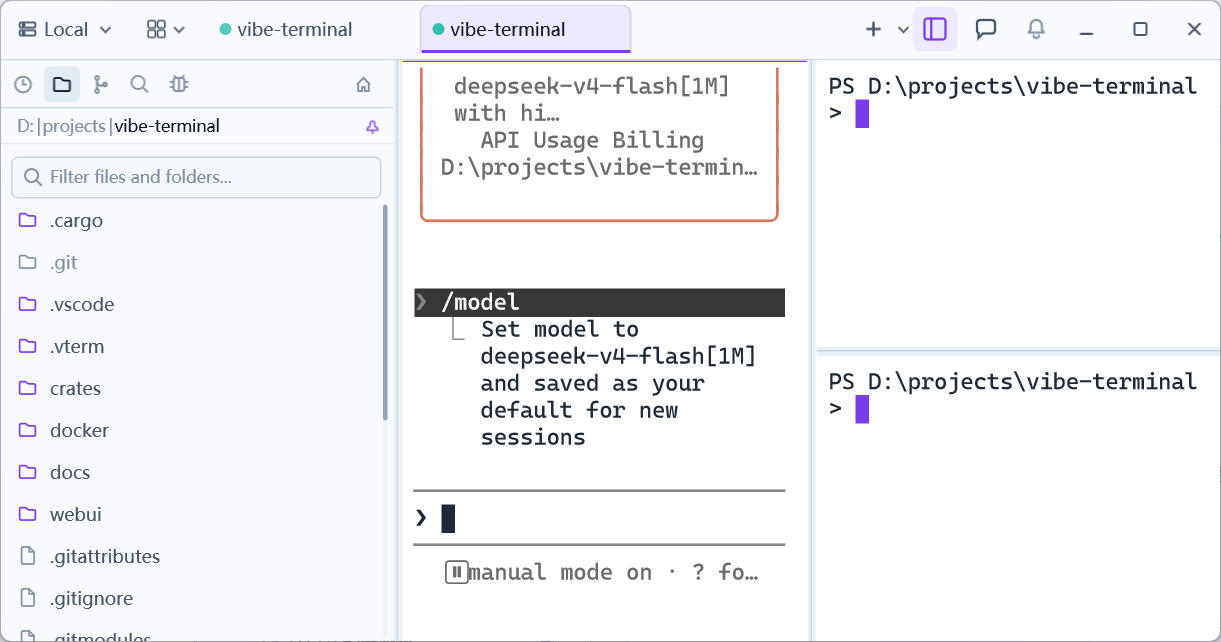
- Pin as tree: the pin button at the right end of the breadcrumbs toggles between the flat list and tree mode. In tree mode folders expand into a collapsible directory tree (the Home jump pins automatically);
- Search: the search box at the top filters the current list by name as you type;
Search in Folderfrom the Recent context menu runs a recursive search over a whole directory.
Basic operations
Right-click a file or folder:
- Create:
New Folder/New File; - Edit:
Rename;Copy/Cut/Paste(works across directories); - Delete:
Delete, with a confirmation dialog; - Terminal tie-in:
Open in Terminalopens a new terminal tab at that directory;cd to Directorycds the current terminal there; - OS tie-in:
Reveal in File Explorershows a local directory in the system file manager; - Paths:
Copy Full Path/Copy Relative Path; - Serve:
Host with HTTP serverpublishes the directory as an HTTP file service (see Host with HTTP Server);Open in Appopens it with an agent app detected on the server.
Every operation acts on the server-side file system; remote sessions behave exactly like local ones.