Documentation
Using the Client
Once the server is configured, every client surface offers translation through the same globe icon. Results are cached per item, so switching back and forth never repeats a request.
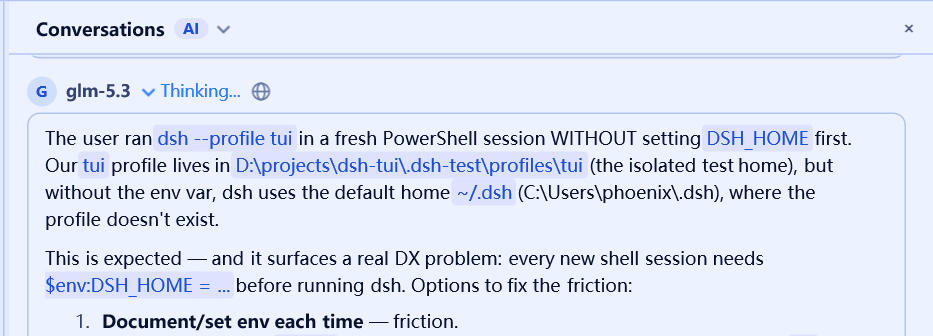
Chat panel messages
Every message header carries a translate icon — next to the time on your own messages, right of the sender name and time on model replies, and right of the Thinking… label on reasoning blocks:
- First click sends the message’s raw Markdown to the server and swaps the message body for its translation. The icon lights up while the translation is shown;
- Another click restores the original text;
- The translation sticks to the message while the conversation stays open, including
Thinking…blocks once you expand them.
Markdown renders normally in translated messages, so lists, tables and code blocks keep their shape.
Commit message draft
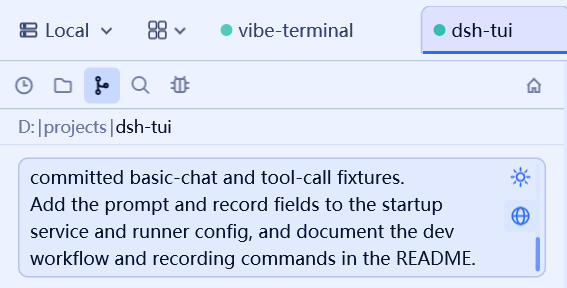
In the Git panel’s commit message box, a translate button appears beside the AI button once your draft spans more than one line:
- Click to translate the whole draft — the translated text replaces the draft in the box as a read-only preview;
- Click again to return to your original wording (the draft itself was never modified);
- Typing is disabled while the preview is shown; flip back first, then keep editing.
Commit details popup
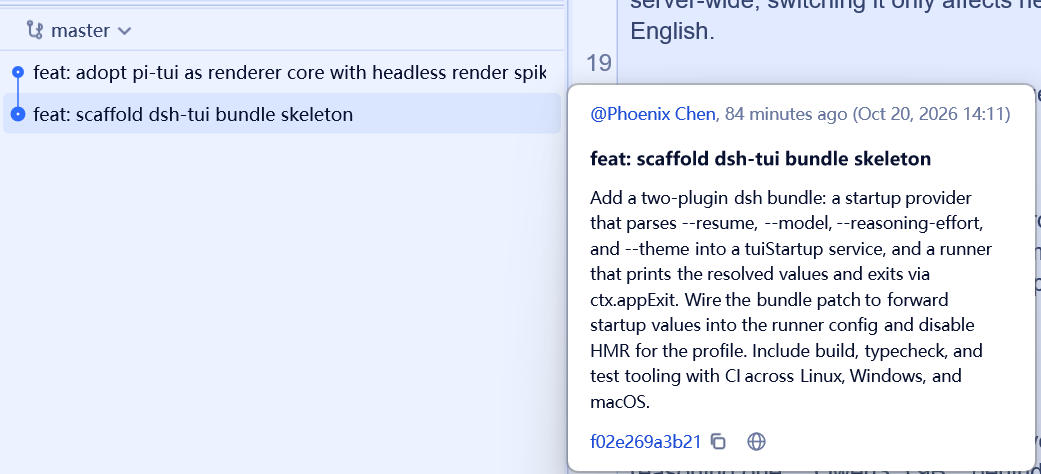
Hover a commit in the Git history to open the details popup. Next to the hash copy button sits a translate icon: click it to translate the commit message inside the popup; click again to see the original. The translated message is rendered like the original — subject line, Markdown body, code blocks included.
Code editor selections
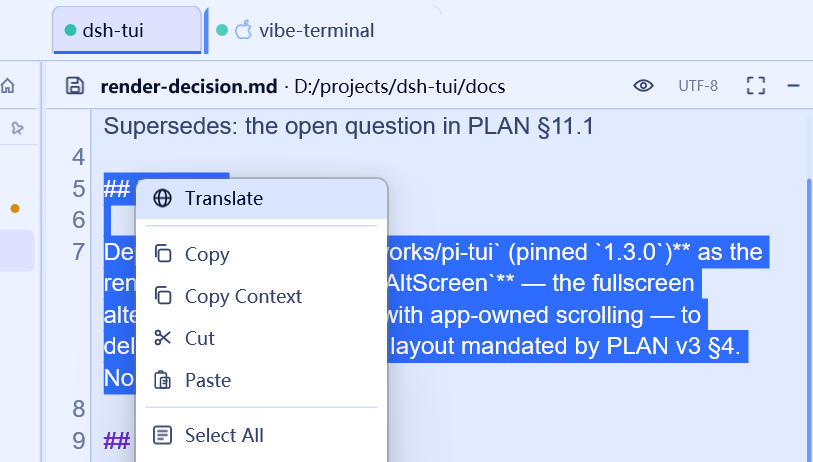
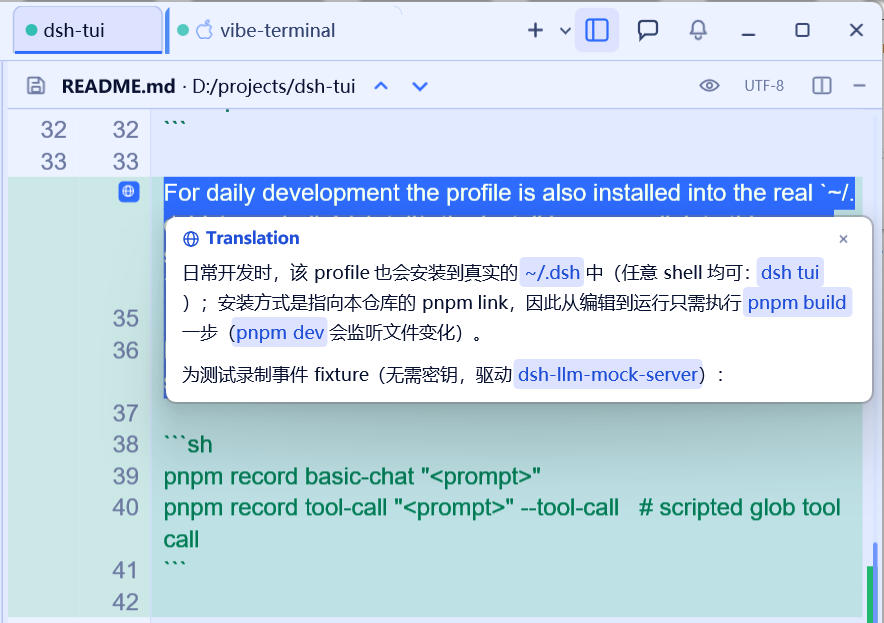
Select text in the code editor — regular or block (rectangular) selections both work — right-click and pick Translate (the first menu entry):
- A solid globe badge appears over the line number of the first selected line;
- A translation card opens immediately with a Translating… placeholder and fills in when the server replies;
- The card is sticky: it stays put while you scroll, and only its close button,
Esc, or a click outside dismisses it. Hovering the badge brings it back.
Each translated selection gets its own badge, and translating the same lines again simply re-shows the cached card. Badges disappear when you open another file.
Diff view selections
The diff view works the same way: select lines in the diff body, right-click, Translate. The badge replaces the new line number on the first selected row, and the result card anchors below it. Selections in edit mode translate too; switching to another file or commit clears the badges.
What gets translated
The server tells the model where the text came from:
- Prose (chat messages, commit messages) — Markdown formatting is preserved and only the natural language is translated;
- File selections (editor, diff) — the file name travels with the request, so the model knows the file’s comment markers (
//,#,--, …). Comment markers are stripped and the comment text is translated as prose; Markdown inside the comment (headings, lists, code fences) survives. If the selection is ordinary code, only comments and string literals are translated — identifiers and structure stay untouched.