Documentation
Customization & Development
There are two levels of customization: patch the source of an existing addon, or write a new one modeled on a built-in and upload it.
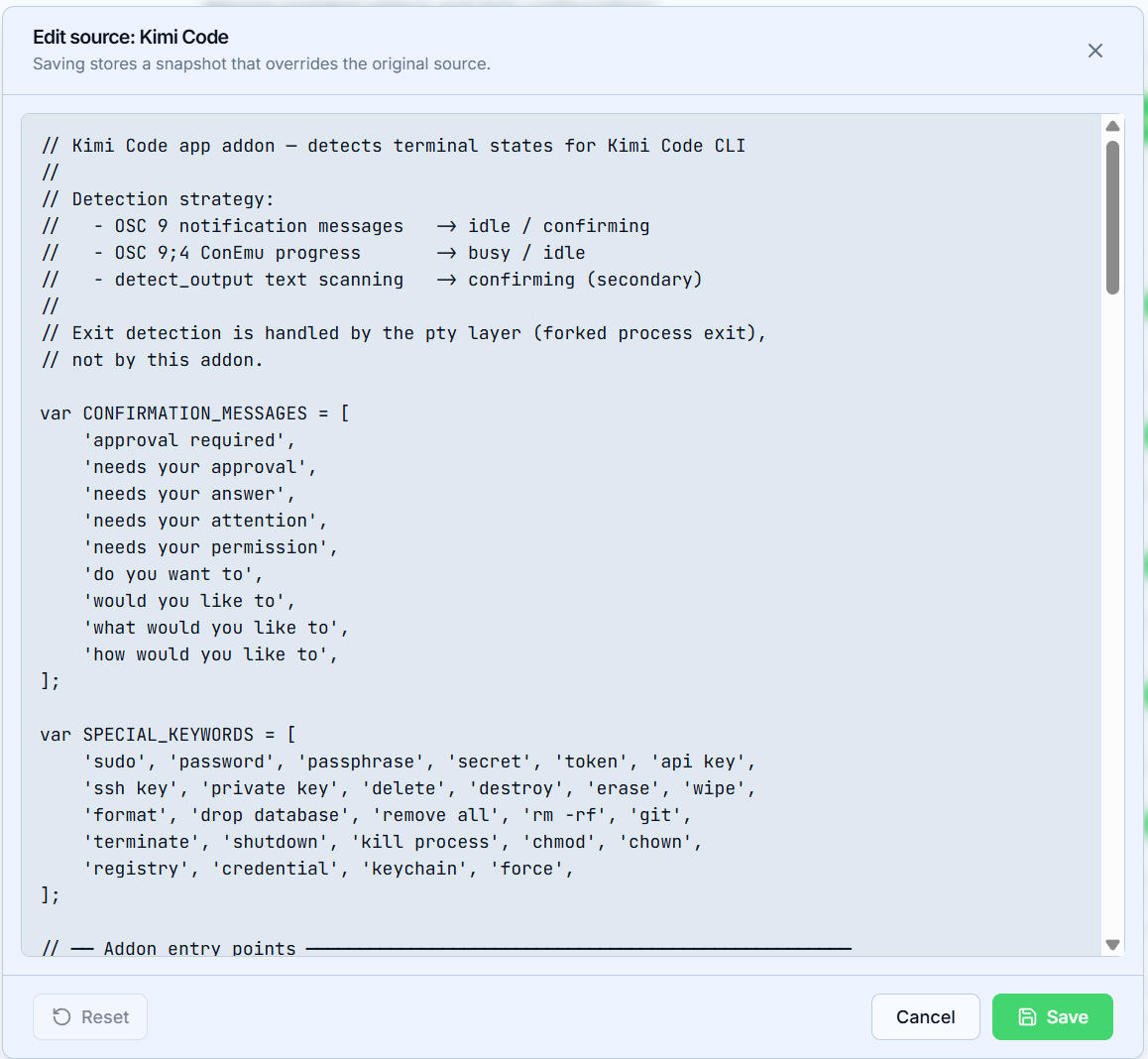
Hot-patching source
The pencil button on any addon card opens its JavaScript source for editing. Saving stores a snapshot that overrides the original — for built-in and uploaded addons alike — and the change takes effect immediately, without a restart. Use it to tweak a prompt, fix a URL, or prototype an idea on the live system.
Reset drops the snapshot and restores the pristine source (built-ins only — an uploaded addon is already yours).
Writing your own addon
An addon is two files:
<id>.json— the manifest:id,name,description,author,email,date,type, andconfig_fields(key, label, field type, default, description) that the Web UI turns into a form;<id>.js— the source: a plain JavaScript file (run by an embedded QuickJS engine, with anaddon.get_config()bridge to the configured fields) exporting the functions its type calls — e.g.chat_completion()for an LLM provider, tool listings and bridge calls for an MCP addon.
The fastest start is to export an existing addon: the Export button on its card downloads a zip with the manifest and the source together. Pick the built-in closest to your goal (they also live in crates/vterm-server/src/addon/builtins/), adjust the id, name, type and the exported functions, then install the result with Upload Addon. Uploaded addons can be deleted again with the trash button.

Storage
Uploaded addons and source snapshots live in the addons/ folder of the config directory as <id>.json + <id>.js, so they survive restarts. For a built-in id only the .js override is honored — the built-in keeps its own manifest.