Documentation
Staging & Committing
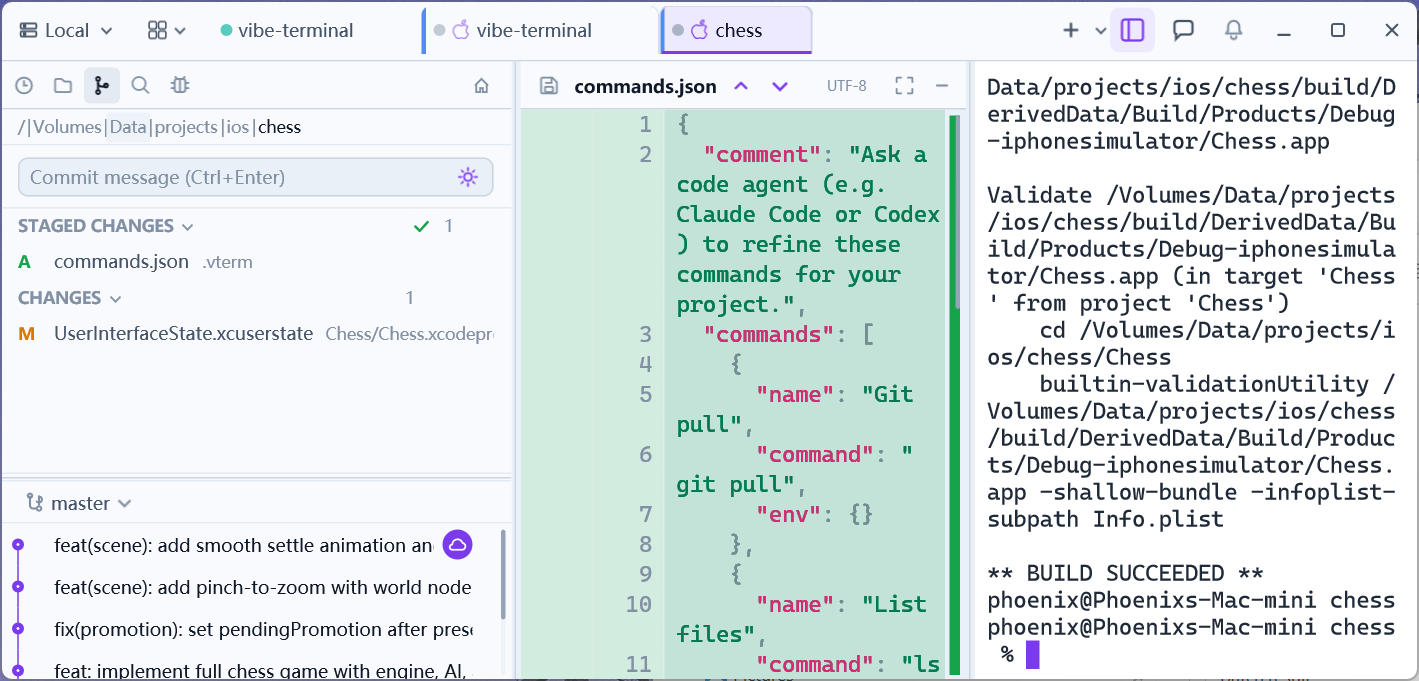
The Git panel’s CHANGES area covers the everyday commit loop: review changes, stage, discard, stash, and commit with a message.
Staging and unstaging
- Unstaged changes are listed under
CHANGES, each file tagged with a status badge —Mmodified,Aadded,Ddeleted,?untracked,!conflict (submodule rows carry an extraSUBtag); - Hovering a row reveals inline action buttons:
+stages an unstaged file,−unstages a staged one, and×on an unstaged row discards it; theStage All Changes/Unstage All Changesbuttons in the section headers handle everything at once; Ctrl-click toggles files into a multi-selection andShift-click selects a range — an action button then applies to every selected file;- Clicking a file name opens its diff so you can review the change before deciding;
- Right-clicking a file offers
View File History,Stash This File,Copy Full Path/Copy Relative Path,Reveal in File Explorer, and acdshortcut that jumps the terminal to the file’s folder.
Committing
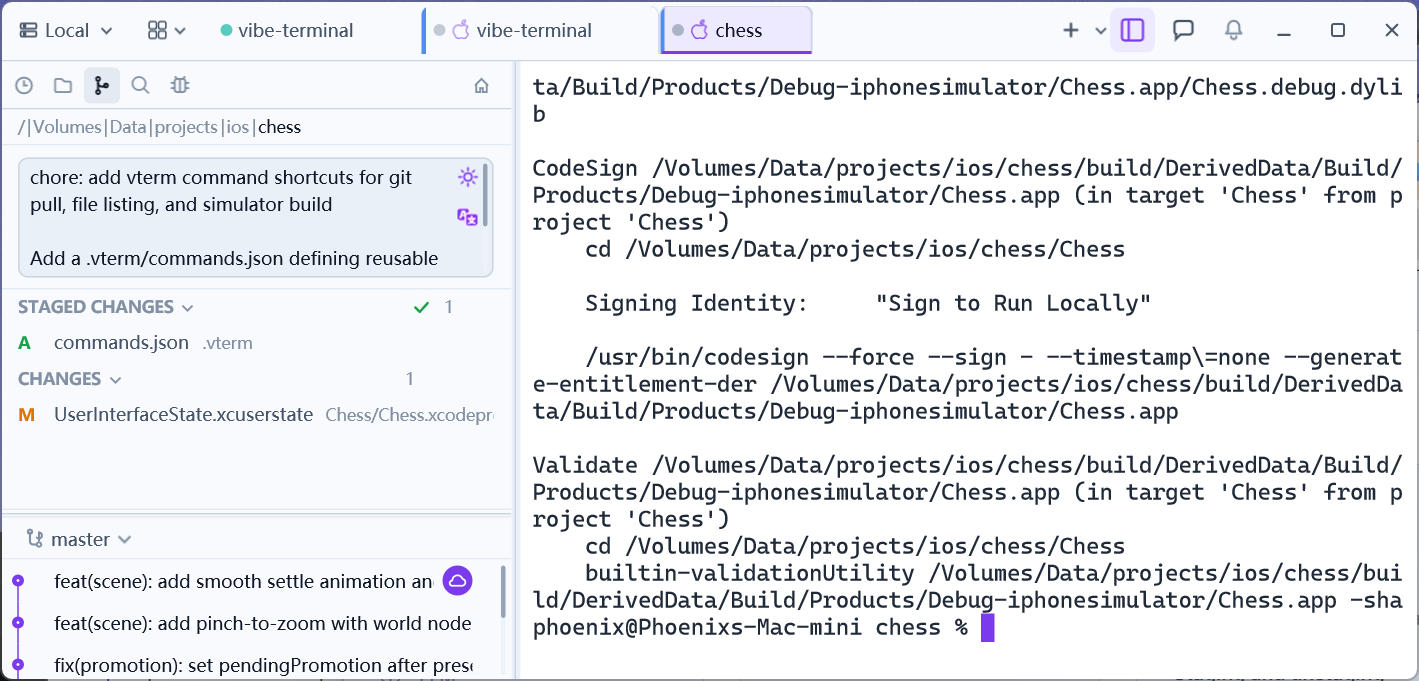
- Stage what should go in;
- Type a message in the commit box (
Ctrl+Entercommits) or click the AI button to generate one (see LLM Assistance); - Click
Commit.
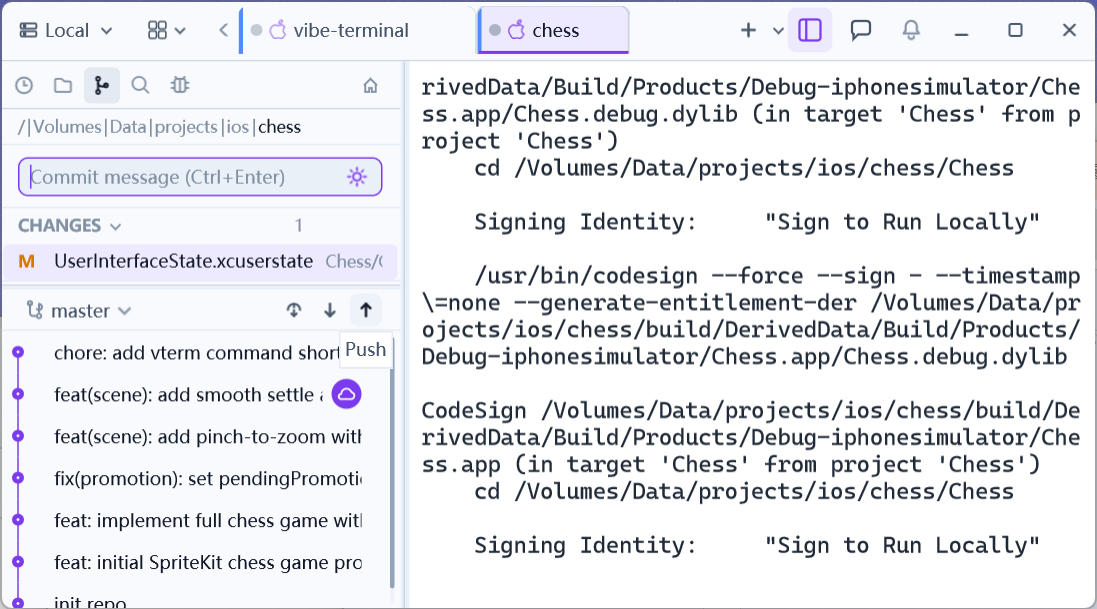
After committing, hover the history header — the bar with the branch name above the commit history — and Fetch, Pull, and Push buttons fade in on its right. Push sends the current branch to its upstream right away; for options such as Force with lease, use the branch list’s push dialog instead (see Push, Checkout & More).
Stashing
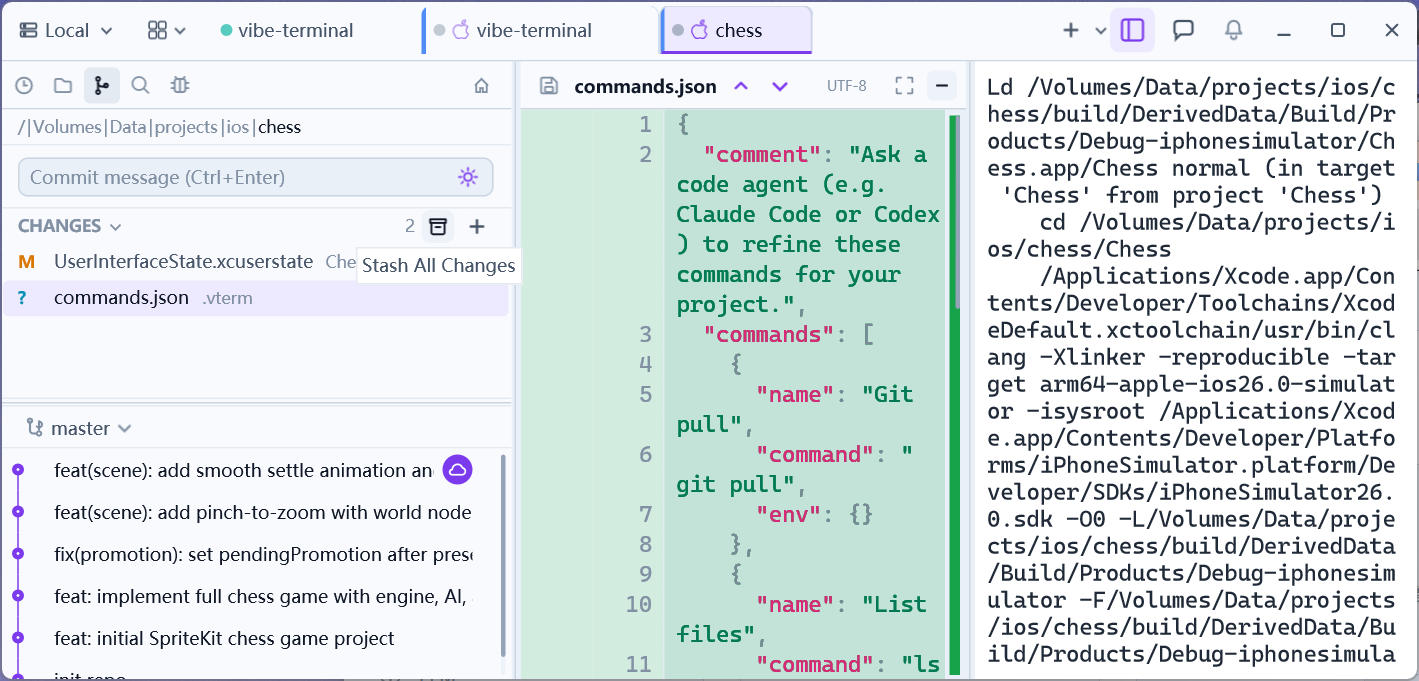
- The archive button in the
CHANGESheader opens theStash All Changesdialog, where an optional message describes the stash; - Right-clicking selected unstaged files offers
Stash This File(orStash <n> Selected Filesfor a multi-selection) to stash just those paths — submodule rows are excluded; - Stashes collect under
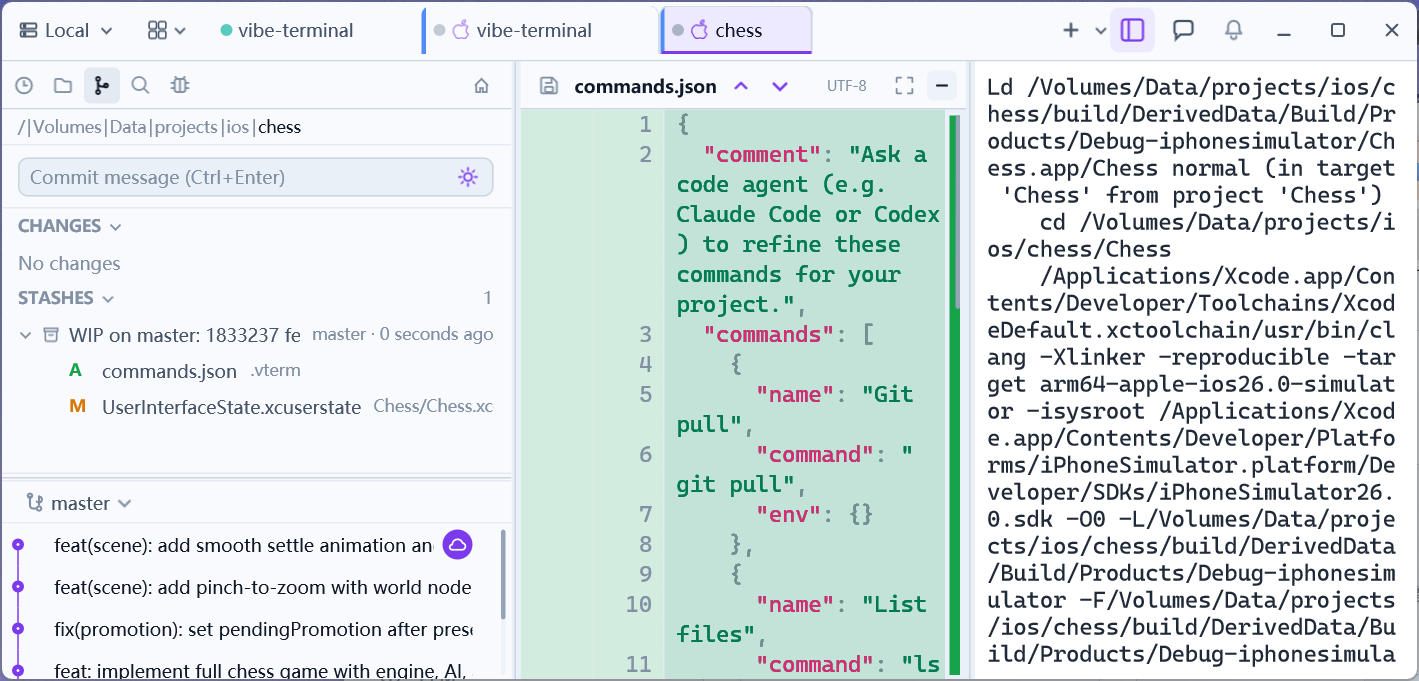
STASHESasWIP on <branch>entries; expanding one lists the files it captured, and clicking a file shows its diff; - Hovering a stash row shows
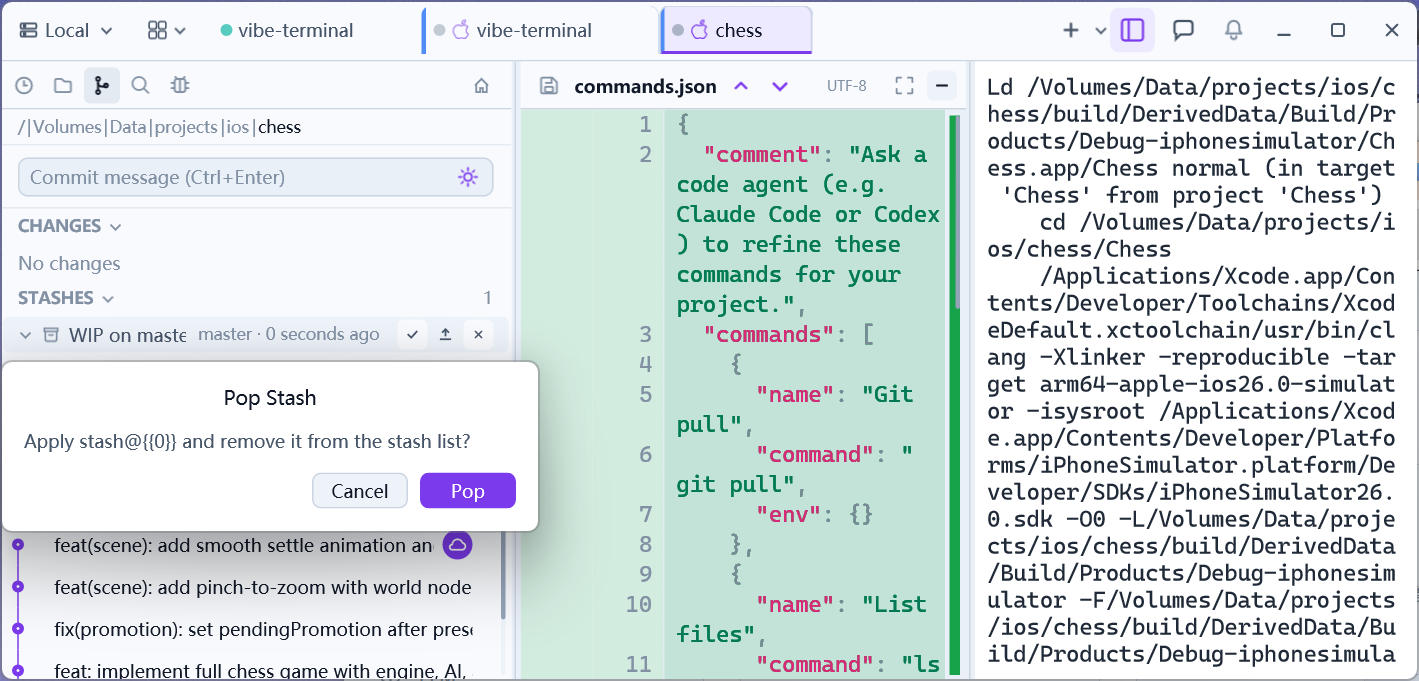
Apply(restore and keep),Pop(apply and remove), andDrop(remove without applying) —PopandDropask for confirmation first, and the right-click menu addsView Diff; - The
STASHESsection stays hidden while the stash list is empty.
Discarding
Discard Changes on an unstaged file throws away all uncommitted changes in it — there is a confirmation dialog and the action cannot be undone.
A commit only includes staged content; unstaged changes stay in the working tree.